

 Emergency Alert
 Address:






 Ahimsa alerts
Page 1
🛰️
🛰️
🛰️
🛰️
🛰️
🛰️
🛰️
San Diego, CA - USA
Last updated: Never

select
Ahimsa profile
from dropdown below
No Subscribers
Cloud Connection
Account Details
currently not accepting any registrations
Data Usage
Core principle: Privacy-by-Design.To protect your privacy, Gain relies on anonymized data wherever possible. High-sensitivity Personally Identifiable Information (PII) is used exclusively for life-saving missions with stringent controls.
The history overview below shows the data that has been processed by your device. For your security, this data remains solely on your device and is never uploaded to the cloud.
History
Future Features
Adaptive Network Switching: Automatically and seamlessly switches between available networks with a clear user-facing indicator:
 LTE/5G (Primary): Used for all high-bandwidth, non-critical data transfers and app
updates.
LTE/5G (Primary): Used for all high-bandwidth, non-critical data transfers and app
updates.
 Satellite (Secondary/Failover): Globalstar's network for critical, low-bandwidth payloads.
The app intelligently queues data and transmits only crucial packets.
Satellite (Secondary/Failover): Globalstar's network for critical, low-bandwidth payloads.
The app intelligently queues data and transmits only crucial packets.
- Priority 1 (Satellite): SOS/Help requests, AI-generated compressed emergency event metadata, and life-saving alerts.
- Priority 2 (LTE/Satellite): User reports, anonymized location heatmap data, and "I'm Safe" statuses.
- Priority 3 (LTE): App analytics, routine app functionality.
Globalstar Message Encoder
For practical reference use the below tool to get an understanding of the message character limit.Sample Satellite Messages
Key Length Validation Features:
Real Globalstar Limits:
- Max Characters: 41 characters (typical SPOT device limit)
- Max Payload Bits: 287 bits (41 chars × 7 bits)
- Optimal Length: 35 characters (recommended)
- Total Transmission: 360 bits (including headers)
Automatic Validation:
- ✅ Optimal: ≤35 chars (green)
- ⚠ Warning: 36-41 chars (yellow)
- ✗ Truncated: >41 chars (red, auto-truncated)
Smart Truncation:
- Automatically truncates to 41 characters
- Tries to preserve word boundaries
- Adds ellipsis to indicate truncation
Visual Feedback:
- Color-coded borders (green/yellow/red)
- Clear length warnings
- Shows original vs processed length
- Displays bit counts at every stage

Settings
Gain has three main categories for Push Notification settings in case of: critical alerts for disaster, conflcit, or Ahimsa notifications.At this stage you can enable all or nothing for disaster and conflict. By enabling Notifications you allow Gain to alert you, even when your phone is locked.
Scroll further down for Ahimsa.
Community Guardian Network
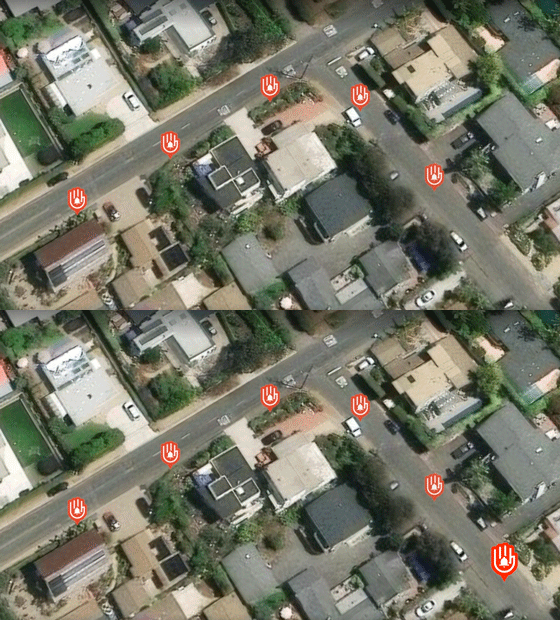
After sucessfull submission of your medical / first-aid / firefighter profile in Account settings (using HireRight or Sterling API service) the below push notifcations will be individually enabled to obtain alerts in case of a critial request for assistance in your commununity within a 600ft range or your location.Ahimsa Notifications
Notifications from Ahimsa alerts can be individually managed outside of the "All Notifications" toggle above.Loading your subscriptions...
Future Features
Privacy and data Details:- Granular control over which sensor data is shared (e.g., allow sound patterns but not raw audio).
- Ephemeral Data Settings: Enable auto-purge of user data from servers after a short period.
Ahimsa Alerts
With an Ahimsa Alert you can send a voice activated push notification to loved ones when you feel unsafe.For example you can prepare profiles for:
- taking a ride share
- hiking a trail
- walking to your car
- commuting with your bike to school
You can enable the voice activated monitoring directly from the Gain Dashboard.
Prepare An Ahimsa Alert Profile
Fill out this form to create a QR code and a direct link to share with others.This profile name will be shown to your subscribers
Ahimsa Profile Name is required
Title of the push notification
Notification Title is required
Message body of the push notification
Notification Body is required
The phrase that will trigger notifications when spoken
Keyword Phrase is required
0 active subscribers
Ahimsa Alerts Overview
Loading your alerts...
Manage Alerts
0 active subscribers
Alert Details
Profile Name is required
Notification Title is required
Notification Body is required
Keyword Phrase is required
ABOUT AHIMSA: In the Hindu, Buddhist, and Jainist tradition, Ahimsa represents respect for all living things and avoidance of violence toward others.

Demo Notifications
Select any of the 5 pre-constructed messages below, or craft your own. Scroll down to Send.In-app only message
Use the below to avoid push notification:



Share and Referral Program
Scan the QR Code to get the Gain App. After you open the page add it to your Home Screen so you can use it as any other App.

 Remove Alert Message
Introducing Gain
 The General Awareness Intelligence Network
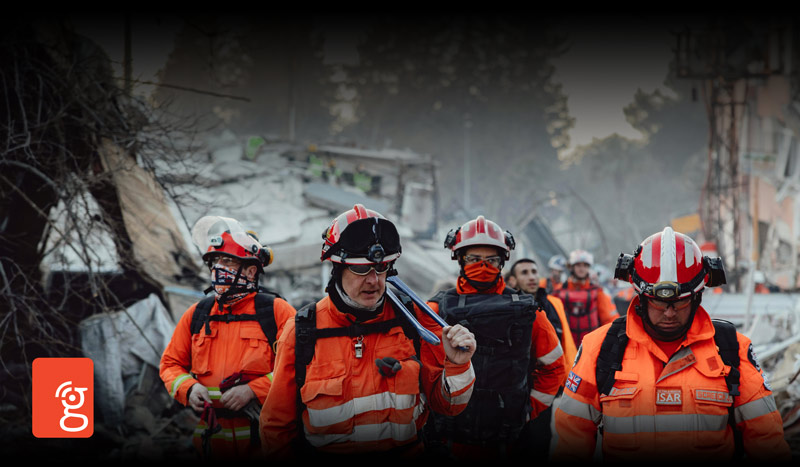
In an era of escalating climate disasters and complex global conflicts, traditional systems for safety and response are being pushed to their limits. The greatest challenge is not a lack of data, but a lack of connected, intelligent, and actionable understanding. Gain is a distributed situational awareness initiative designed to become a general awareness intelligence network. By leveraging the powerful sensors in everyday smartphones and integrating them with satellite connectivity and advanced analytics, we create a living, responsive network that empowers both communities and responders.
For Communities Facing Disaster
A Collective Shield
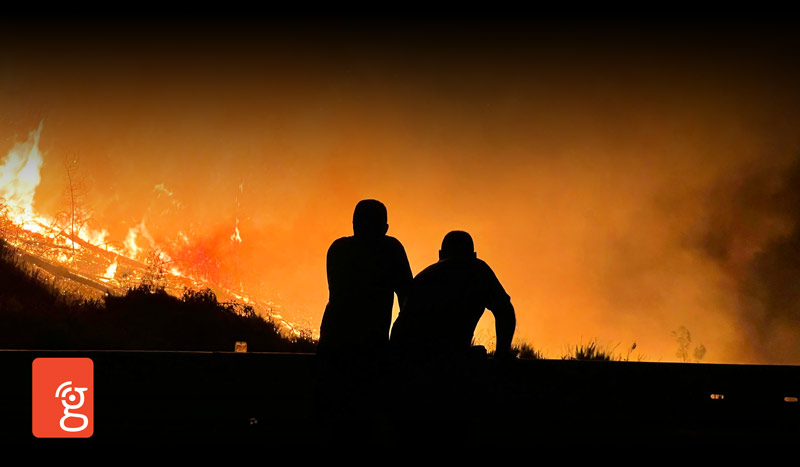 In the path of a hurricane, wildfire, or earthquake, every second counts. Gain creates a
community-powered shield by leveraging satellite connectivity and an advanced sensor suite. Stationary
phones become silent guardians, detecting the barometric pressure drop of a strengthening storm or the
unique vibration signature of a distant earthquake.
In the path of a hurricane, wildfire, or earthquake, every second counts. Gain creates a
community-powered shield by leveraging satellite connectivity and an advanced sensor suite. Stationary
phones become silent guardians, detecting the barometric pressure drop of a strengthening storm or the
unique vibration signature of a distant earthquake.
For Conflict Zones
Managing the Unmanageable with Responsibility
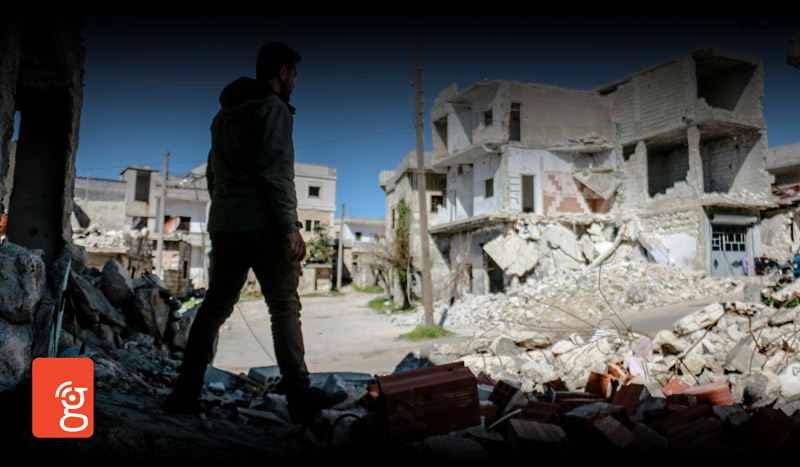 In politically sensitive and militarized contexts, the dynamics shift dramatically. The very act of reporting
carries risk. Gain is engineered for these environments with a foundational principle through a
privacy-by-design architecture. Sensitive data, like exact GPS or raw audio, is processed with extreme
care, shared only with vetted humanitarian partners for specific, life-saving missions.
In politically sensitive and militarized contexts, the dynamics shift dramatically. The very act of reporting
carries risk. Gain is engineered for these environments with a foundational principle through a
privacy-by-design architecture. Sensitive data, like exact GPS or raw audio, is processed with extreme
care, shared only with vetted humanitarian partners for specific, life-saving missions.

Add Gain as an App
For a faster experience, install this page on your Home Screen as a Progressive Web App. This will allow you to Enable and Disable push notifications to your phone, even when your phone is locked. You can manage this in your Settings.
Open the Share button

Tap "Add to Home Screen"

Open the Gain App!
Need help for a specific browser?
- Safari (iPhone/iPad): Use the "Share" icon (box with upward arrow) and then "Add to Home Screen."
- Chrome (Android): Use the Menu (3 dots) and then "Add to Home Screen."
- Chrome/Safari (Desktop): Look for an install icon (📥 or +) in the address bar.